
GUIDE
How to gather photos scattered across folders and drives into Apple Photos
Years of camera imports, phone backups and copied folders tend to end up in many places: Desktop folders, old external drives, a "Photos backup 2019" folder that is in fact a copy of another one. This guide shows how to bring them into Apple Photos without losing anything, first with Photos alone and then with KarmaDisk.
Download KarmaDisk free for Mac
macOS 15 or later. Storage maps and duplicate review are free. Photo workflows include a lifetime sample of 50 photos; an optional one-time Full Version removes that limit.
Before you start
- Have a backup. Time Machine or another copy of the drives you are about to work through. Importing creates new copies, so nothing is lost at this step, but later clean-up should never be your only copy.
- Check free space. An import copies every picture into your Photos library. You need roughly as much free space as the photos you import, until the originals are removed.
- Know where your library lives. Imports go into the System Photo Library. If you use iCloud Photos, new items will also upload to iCloud.
- Connect the drives you want to include, so every folder can be searched in one pass.
With Apple Photos alone
Photos can do this without any other app. In Photos, check Settings, General: when "Copy items to the Photos library" is on, imported pictures are copied into the library rather than referenced where they are. Then choose File, Import, select a folder and import it. Repeat for each folder.
This works well for a handful of folders. It becomes tedious when pictures are spread over dozens of folders and several drives, and it leaves one question open: which of the original files can now safely be deleted? Photos does not tell you that a particular file on your drive now has a complete copy in the library.
With KarmaDisk
KarmaDisk was built for exactly that gap.
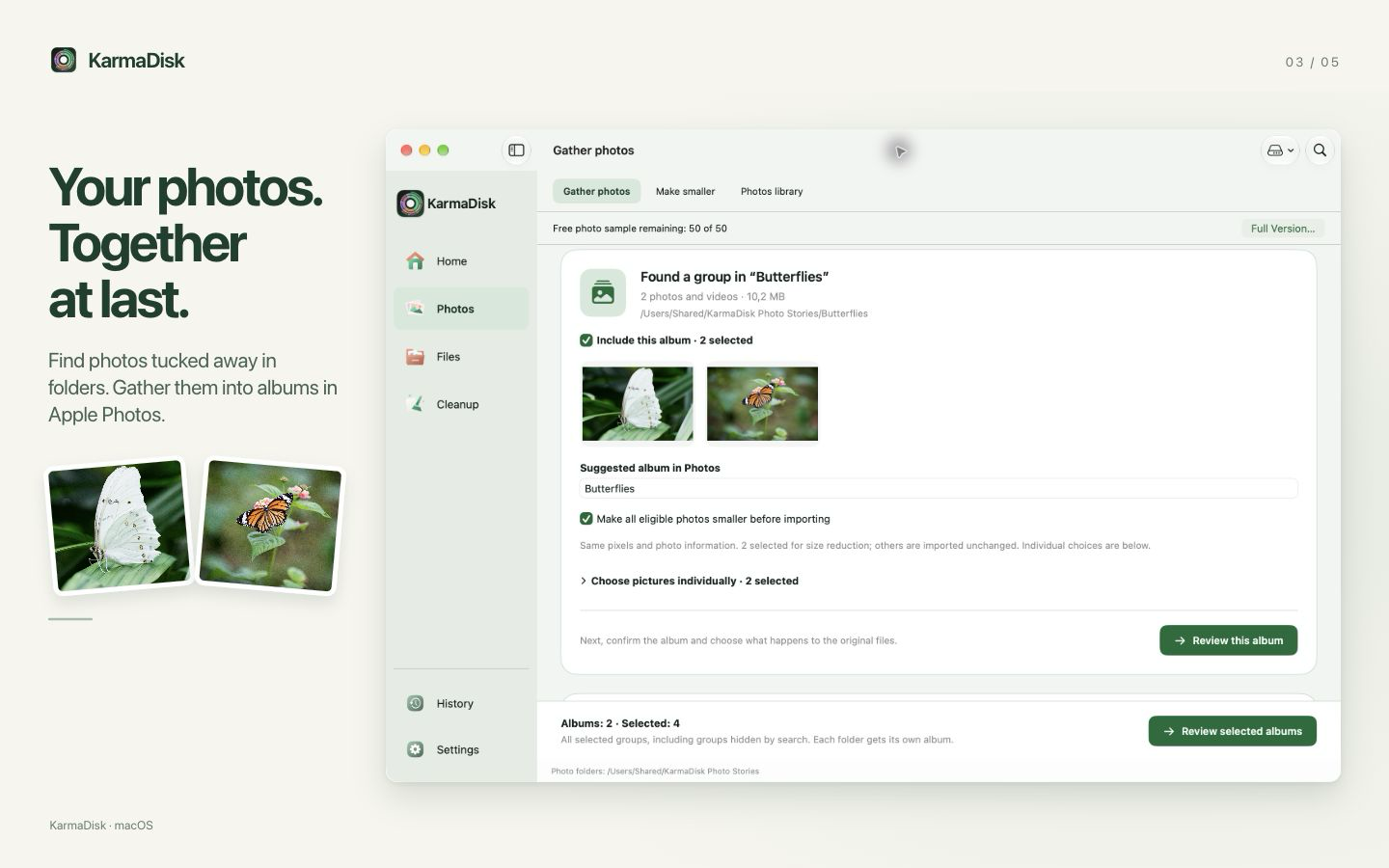
- Open Photos, Gather photos and choose the folders and drives to search. KarmaDisk finds the pictures and videos inside them, including deep subfolders.
- Recognise your pictures from large thumbnails and previews, and select what you want. Excluding a folder only changes the selection; it never changes or deletes files.
- Choose the albums to import into. Making smaller copies on the way is optional and keeps the pixels and embedded photo information.
- KarmaDisk imports the pictures and then checks each one: that Photos holds a complete copy and that it is in every album you chose.
- Before importing, choose whether to remove the originals. The option Move verified originals to Trash after import is on by default; clear it to keep every original where it is. An original is moved to the Trash only after its checks pass. Anything that cannot be confirmed stays in its folder, and the result screen lists imported, removed and kept items separately.
KarmaDisk keeps a record of each import, so an interrupted run can continue without importing the same pictures twice. Originals you decided to keep can be reviewed later under Cleanup, Photo originals.
Duplicate folders
Scattered collections often contain the same folder copied twice. KarmaDisk's free Files, Extra copies view groups identical files, shows where each copy lives, and lets you mark which copies to keep. At least one copy always remains, and every file is checked again just before anything is moved. Some copies already share disk storage, so removing them frees little; a filter shows which.
When space is actually freed
Importing alone uses more space, not less. Space comes back only when originals are moved to the Trash and the Trash is emptied, and KarmaDisk never empties it for you. If you use iCloud Photos with "Optimise Mac Storage", Photos decides how much of the library stays on your Mac. If a source folder is synced, for example with iCloud Drive or Dropbox, removing an original there can also remove it from your other devices.
KarmaDisk runs locally, needs no account and has no ads or tracking. It supports these workflows on macOS 15 and later.
Download KarmaDisk free for Mac
Related questions
- How to import folders into Apple Photos as albums
- Will Apple Photos import duplicates?
- Getting photos off an old external drive, in a safe order
- Is it safe to delete the originals after importing?
- Can you combine two Photos libraries?
- Inherited a parent's Mac: finding and keeping the photos
- Printable handout: gathering and checking family photos
How KarmaDisk checks smaller photos and their originals · Full user guide