
GUIDE
Inherited a parent's Mac? How to find and keep the photos
When a parent dies, their Mac can hold decades of family pictures. There is no need to sort it all out at once. This guide explains how to reach the photos through Apple's own routes, make safe copies first, and only later decide what to organize. Most of it needs nothing but macOS.
Download KarmaDisk free for Mac
Only the last section is about KarmaDisk. Everything before it works with the tools that come with a Mac.
1. First, change nothing
Keep the Mac plugged in and leave it as it is. Do not erase it, reinstall macOS or sign out of accounts in the first days, even if someone suggests it to "start fresh". Erasing a Mac permanently removes its user accounts and their data. Old external drives, memory cards and discs found nearby may hold photos too, so keep them together with the Mac.
2. If you don't know the login password
Apple's article If you forgot your Mac login password describes the documented options:
- If another administrator account on the Mac works, its user can change the login password in Users & Groups settings.
- The login window may offer a reset using the Apple Account linked to that user, or the FileVault recovery key, a 24-character code of letters and numbers created when FileVault was turned on. Look among the papers your parent kept.
- The same article explains resetting from macOS Recovery. Erasing the Mac is the last option it lists, and it removes the data you are trying to keep.
If none of these works, contact Apple Support before trying anything else. Avoid tools or services that promise to bypass a Mac's password.
3. The Apple Account and iCloud
If your parent used iCloud Photos, many pictures may be stored in iCloud as well as, or instead of, on the Mac. Access to that account goes through Apple's Digital Legacy process, separately from the Mac itself.
- If you were named a Legacy Contact, you need the access key your parent created and a death certificate. You can start the request at digital-legacy.apple.com or on an iPhone or iPad. Once approved, you can use iCloud.com to reach the account's data, including photos, for three years from the date Apple approves the first request, after which the account is permanently deleted. See Request access to an Apple Account as a Legacy Contact.
- If no Legacy Contact was set up, Apple describes routes through a court order or other legal documents, depending on the country, in Request access to a deceased family member's Apple Account. Only one person can make that request, so agree within the family who does it. Apple notes that some end-to-end encrypted data cannot be decrypted.
Legacy Contact access does not include purchased movies, music or books, subscriptions, payment information, or passwords and passkeys kept in iCloud Keychain (How to add a Legacy Contact). This is also a good moment to set up Legacy Contacts for your own account.
4. Finding the photos
In the Photos app. By default, the System Photo Library is stored in the Pictures folder of your parent's user account (Photo library overview on Mac). Some people kept more than one library. To see them, quit Photos, hold the Option key and click the Photos icon; the Choose Library window lists the available libraries, and Other Library lets you look for one that is not listed (Create additional photo libraries). If iCloud Photos used Optimize Mac Storage, the Mac may hold smaller versions while the originals are in iCloud (Set up and use iCloud Photos).
In loose folders. Many pictures never reached Photos: camera imports on the Desktop, scans in Documents, attachments in Downloads, folders on external drives. In Finder, choose File, New Smart Folder, click + and set "Kind" to "Image" to list them across the Mac or on a connected drive.
5. Copy before changing anything
Make copies first and organize later, from the copies. Use an external drive with plenty of free space.
- From Photos: select the photos, then choose File, Export, Export Unmodified Original. This saves the files in the format they were imported in. Live Photos become a still image and a short video, and keywords can be saved alongside with "Export IPTC as XMP" (Export photos on Mac). Captions, People names and albums may not travel with the files, so note what matters to you.
- The whole library: with Photos closed, you can also copy the entire library file to the external drive in Finder as an untouched reference copy. Do not open it and change things inside it.
- Loose folders: copy each one into its own folder on the drive, named after where it came from.
Nothing needs to be deleted from the Mac at this stage, or at all, until every copy has been checked.
6. Keep more than one copy
A common rule of thumb is 3-2-1: three copies, on two different kinds of storage, one kept somewhere else. In practice that can be the Mac, an external drive with Time Machine or a plain copy, and a second drive kept by a sibling or a cloud service. Sharing a copy with relatives also means the photos no longer depend on one household. The Library of Congress' advice on digital photos adds checking the copies once a year.
7. Where KarmaDisk can help
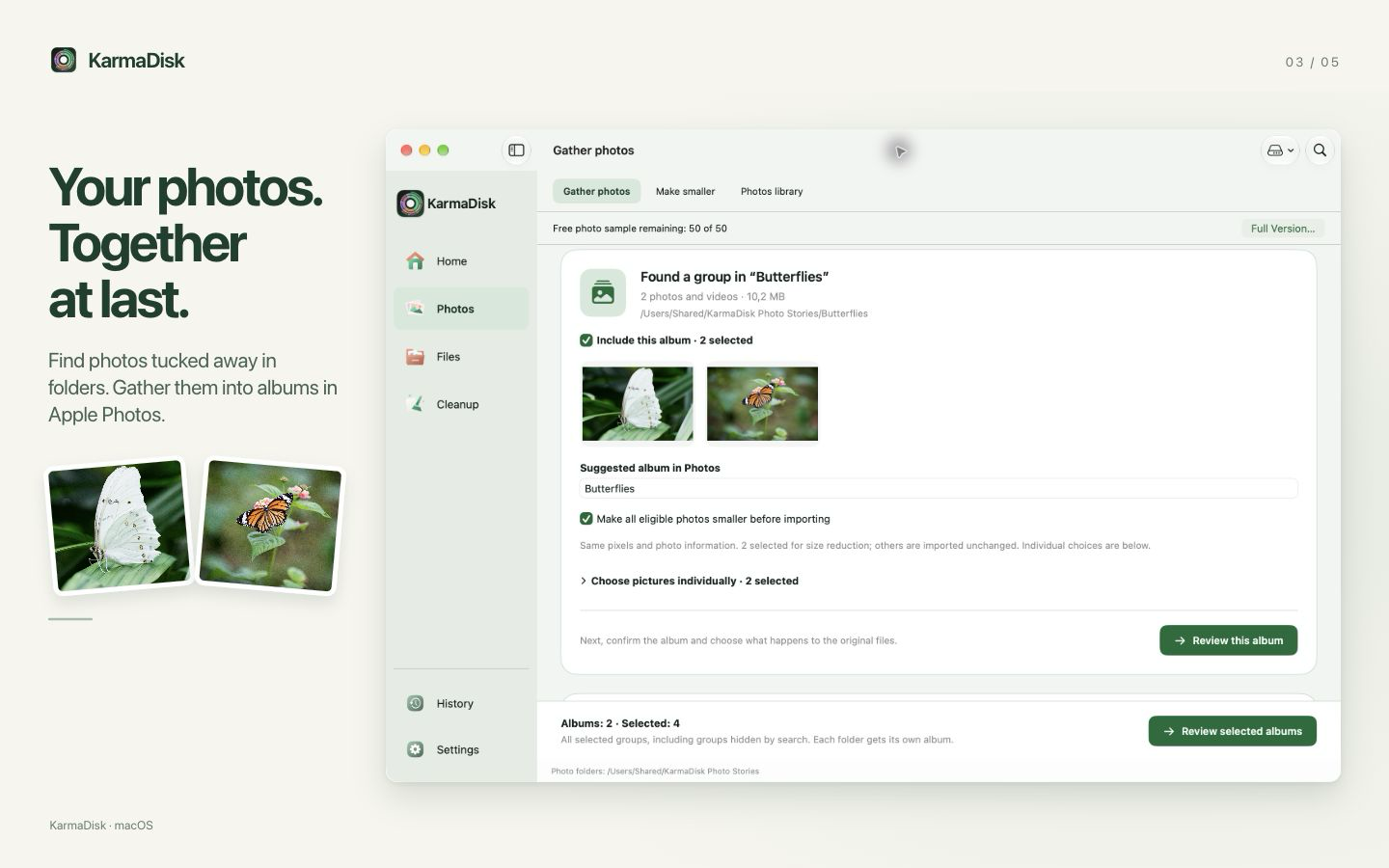
Once copies exist, you may want the photos in your own Photos library, arranged in albums. Photos alone can do this with File, Import, one folder at a time. KarmaDisk is a Mac app that helps when the copies are spread over many folders and drives.
- On your own Mac, open Photos, Gather photos and choose the folders or drives with the copies. KarmaDisk finds the pictures and videos inside them, including subfolders, and shows them as large thumbnails.
- Choose albums, for example one per decade or per family branch, and import.
- KarmaDisk then checks each picture: that Photos holds a complete copy and that it is in the albums you chose.
- Removing originals is a separate step you can skip. If you approve it, an original goes to the Trash only after its checks pass, and KarmaDisk never empties the Trash. For an inheritance, keeping the originals on the backup drive is a sensible default.
What it does not do: it cannot unlock a Mac or an Apple Account, it cannot sign in to another person's iCloud, and it works only with the Photos library of the Mac user who runs it, so it does not open or merge another person's library. It works in the macOS App Sandbox, only sees folders you choose and does not ask for Full Disk Access. Free storage maps and the Files, Extra copies view can show where large photo folders are and which files are identical. Photo workflows include a lifetime sample of 50 photos; an optional one-time Full Version removes that limit. There is no account, advertising or tracking.
Download KarmaDisk free for Mac
How to gather scattered photos into Apple Photos · Full user guide