
HOW KARMADISK WORKS
Smaller photos. A clear path to removing the originals.
Making a photo smaller is only half the job. You also need to know which copy to keep, what has been checked, and when removing the original will actually free space.
KarmaDisk brings those steps together. Here is the workflow, followed by the checks behind it.
macOS 15 or later. Optional one-time Full Version purchase.
1. Start with a folder you recognize
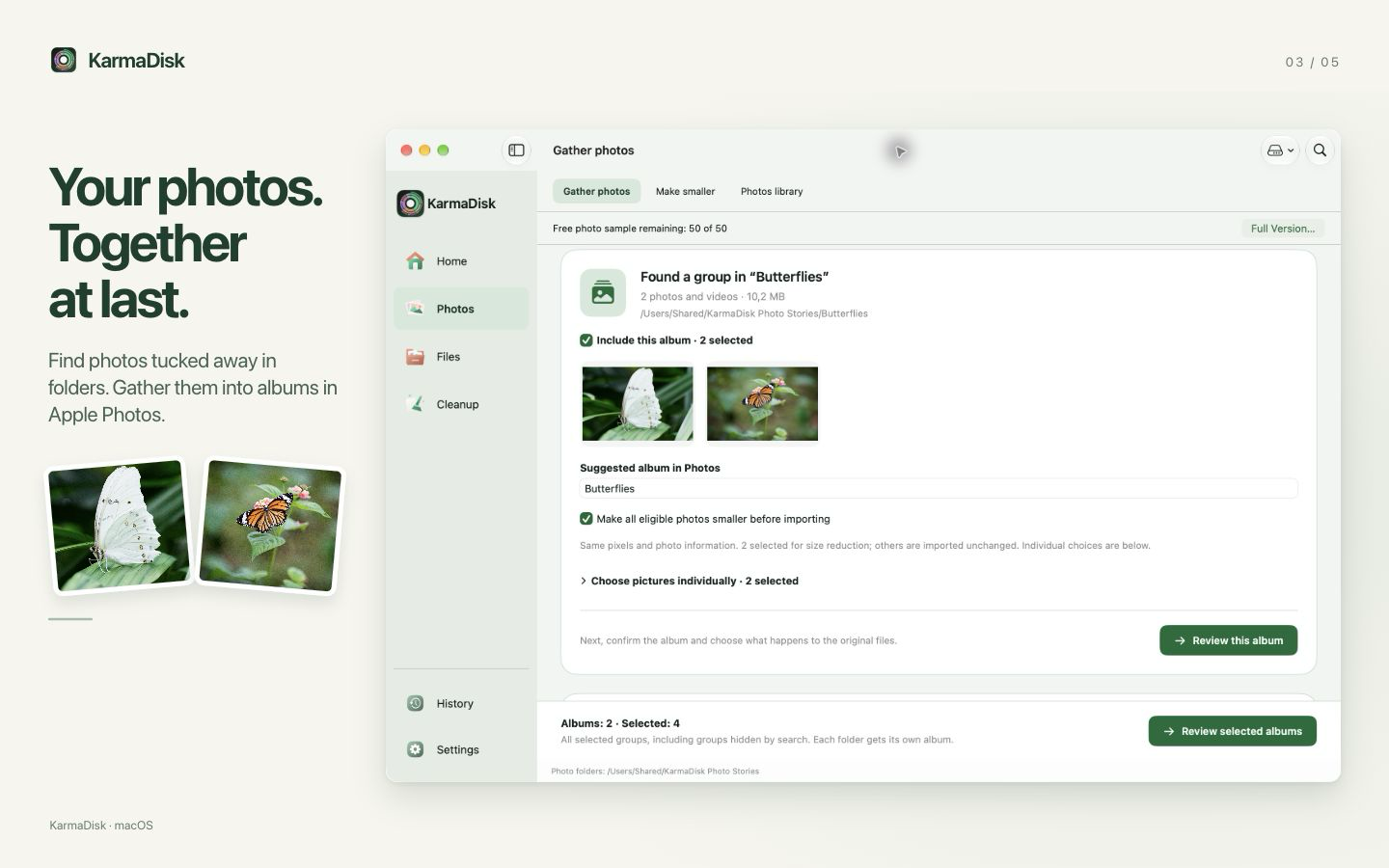
Choose a folder containing old pictures, such as a holiday folder on your Desktop. KarmaDisk groups the photos it finds so you can review them together and import them into Apple Photos albums. Start with a small folder: you can see the result before tackling the rest of your collection.
2. Make supported photos smaller without losing image quality
Lossless compression changes how an image is stored, while preserving its image information. KarmaDisk checks each result and accepts it only if it passes verification and is smaller. Some files are already compact; leaving them unchanged is a valid result.
The Photos-library workflow checks eligible, unedited, single-resource JPEG, PNG and TIFF images. HEIC, RAW, Live Photos, videos and edited photos are left unchanged by this workflow. Burst photos and items from shared albums are also skipped. A library made mostly of those formats may have little eligible content.
There is no universal saving percentage. The result depends on the original encoding and the files you choose. The app reports the result for your images.
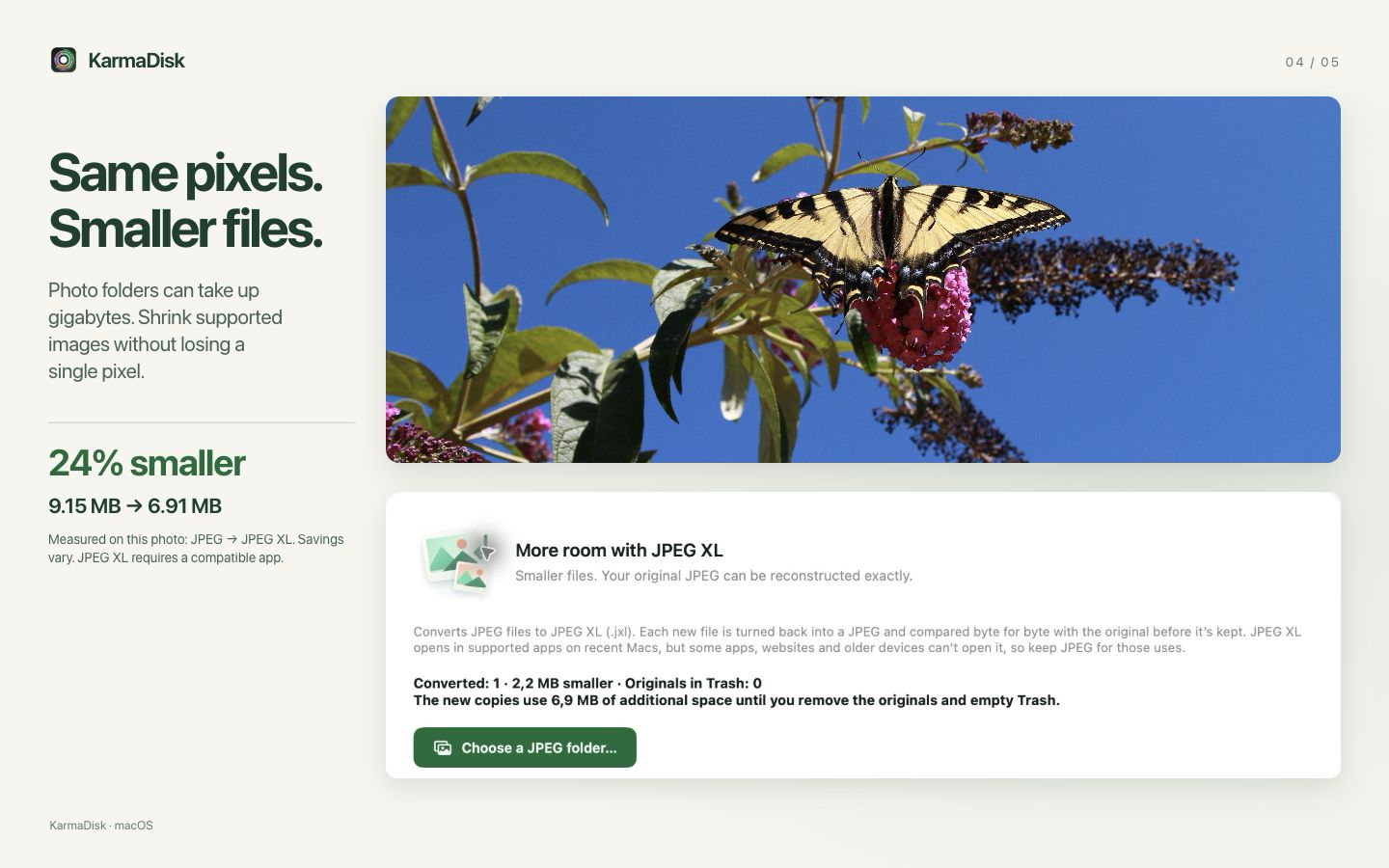
A real photo, 24.4% smaller
On 21 October 2026, we converted an untouched, publicly available butterfly photograph through KarmaDisk’s JPEG XL workflow. This is a measured example, not an average or a promise for your library.
- Original JPEG
- 9.15 MB (9,148,304 bytes)
- JPEG XL copy
- 6.91 MB (6,914,997 bytes)
- File-size reduction
- 2.23 MB (2,233,307 bytes), or 24.4%
- Verification
- The JPEG XL file reconstructed the complete original JPEG byte for byte. We also reproduced the conversion through the app, with the same output size and file hash.
We used the original download without enlarging, re-encoding or padding it. The source is Lisa Redfern’s swallowtail butterfly photograph on Wikimedia Commons, released under CC0. Sizes above use decimal MB.

Smaller files are not the same as immediately freed space. We kept the JPEG for this demonstration, so the new copy initially used another 6.91 MB. The 2.23 MB difference becomes a potential storage saving only after the original is removed and Trash emptied. Snapshots and shared storage can still affect available space.
Try this example and inspect the measurements
- Download the original JPEG from the linked photo page into a local folder. Keep a backup.
- In KarmaDisk, choose Photos → Make smaller, then expand “Save more with a different format · JPEG XL”. Choose that folder.
- Keep original removal switched off for your first test, then convert the photo. KarmaDisk saves the JPEG XL copy beside the original and verifies reconstruction.
- Compare the file sizes and open the new copy in an app that supports JPEG XL. Review the originals separately when you are ready.
This result applies to this JPEG-to-JPEG XL conversion. It does not establish savings for HEIC, RAW, an entire Photos library or same-format JPEG optimization. Some apps and websites cannot open JPEG XL, so keep JPEG copies where needed.
3. Check the copies, then choose what to remove
Importing into Photos creates a copy. Making an existing Photos item smaller also adds a new item first. The originals remain until you approve their removal.
KarmaDisk keeps local records linking the originals to their copies and checks the relevant files or Photos resources again before removal. If a file changed or a check cannot complete, the original stays. A previous success is not treated as permission to remove a changed file later.
For imported folders, review the individual originals. Other documents in the folder still matter: importing its photos does not make the entire folder disposable.
Finder files go to Trash. Items removed inside Photos go to Recently Deleted. Space may not become available immediately; iCloud, snapshots and shared storage can also affect the amount recovered.
What does “verified” mean?
Three different questions need three different checks. A matching filename or a thumbnail cannot answer all of them.
- Lossless image optimization
- The output is compared with the input using the format’s verifier. JPEG verification checks the encoded image coefficients and associated image parameters; PNG and TIFF verification checks decoded image data. A smaller file that fails verification is not accepted.
- JPEG XL conversion
- This is a separate, optional workflow for supported local JPEG files. KarmaDisk uses the open-source libjxl codec to create a .jxl file, reconstructs the original JPEG from it, and compares the reconstruction with the original byte for byte. It also records hashes and file identities for later checks. This is stronger than merely checking that two previews look alike.
- Photos import and replacement
- The app verifies the Photos resource against the expected file content. For Photos-library optimization, it also checks the creation date, location, favorite and hidden status, and regular album memberships before allowing the original’s removal. This does not mean every piece of Photos-library information transfers.
Captions, keywords, People, Memories and other library-only information may not transfer to a newly added Photos item. Keep a library backup if that information matters to you, and inspect a small batch in Photos first.
JPEG XL also has a compatibility tradeoff: some apps and websites cannot open it. Keep JPEG copies for those uses. KarmaDisk’s JPEG XL workflow skips unsupported cases, including cloud-synced locations and certain compound JPEGs; it does not convert every JPEG.
The checks reduce specific risks; they do not replace a backup. You remain in control of which originals to remove.
See your storage before changing it
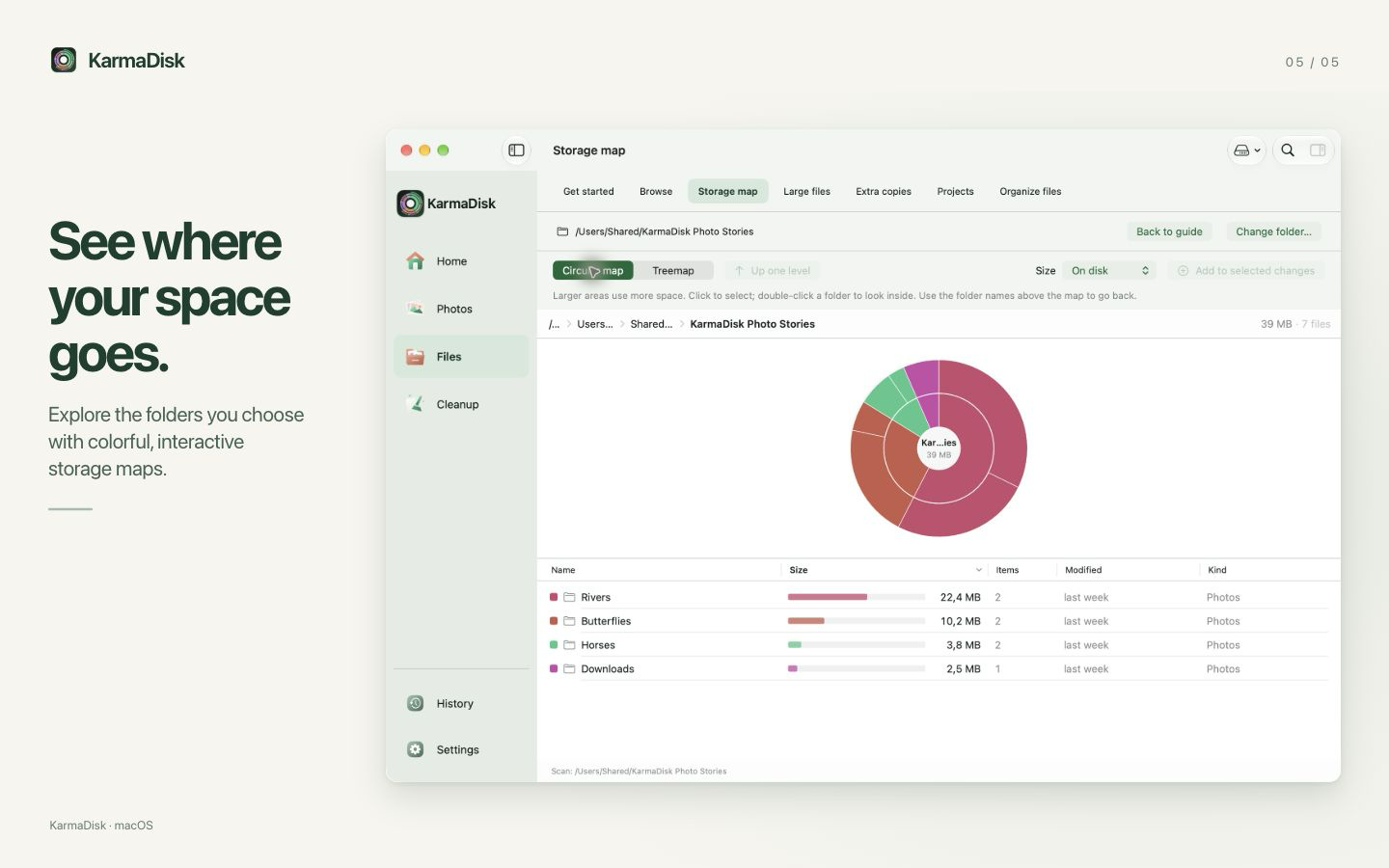
The circular map and treemap show how the folders you choose use space. Drill into a folder, follow the path back up, and inspect files before deciding what to do.
Try it with your own photos
Storage maps, duplicate review and cleanup are free. Photo processing includes a lifetime sample of 50 photos (videos also count); Full Version unlocks unlimited photo processing and automatic file organization with a one-time purchase. The US price is $9.90; your local price is shown in the App Store.
Technical background
This explanation describes KarmaDisk 1.2.0. The JPEG XL codec is libjxl; KarmaDisk supplies the workflow, verification and original-file recovery records around it. The app includes the relevant third-party license notices.