
GUIDE
How to import folders into Apple Photos as albums (and keep the folder names)
You have pictures sorted into folders named after trips, years and family events, and you want the same names in Photos. Photos on the Mac can do this itself, with one limit around folders inside folders. This guide shows the built-in ways first, then where KarmaDisk helps.
Download KarmaDisk free for Mac
macOS 15 or later. Storage maps and duplicate review are free. Photo workflows include a lifetime sample of 50 photos; an optional one-time Full Version removes that limit.
1. Drag a folder into Photos
One way is to drag a folder from Finder into the Photos window. According to Apple's guide to importing from storage devices, this creates a new album matching the folder name. You can also drag pictures straight into an existing album in the sidebar.
Before you start, open Photos, Settings, General and look at "Copy items to the Photos library". When it is on, Photos stores a copy of every imported file in the library. When it is off, Photos leaves the files where they are and only refers to them, and Apple's Photos settings guide notes that such files are not automatically uploaded to iCloud Photos and need to be backed up separately. With the setting on, the library holds its own copy of each picture.
2. Use File, Import for more control
- In Photos, choose File, Import, select a folder and click Review for Import.
- Use the Album pop-up menu to choose where the pictures go, for example a new album.
- Click Import All New Photos, or select only the pictures you want.
Repeat for each folder you want as its own album.
3. Folders inside folders
This step often causes confusion. Apple's guide says that if the folder you selected contains other folders, you must choose Library as the destination, because "you can't import a group of folders into an album". To keep the structure, select Keep Folder Organization before clicking Import All New Photos.
In the Apple Community thread on importing scattered photo files, an experienced member describes the result of dragging a folder of folders into Photos as a folder of albums in the sidebar. If you have only a few top-level folders, either method works well. It gets slower when the folders are spread across your Desktop, Documents and several external drives, because each one has to be found and imported separately.
4. With KarmaDisk
KarmaDisk's Photos, Gather photos is meant for pictures that are spread over many places.
- Choose the folders and drives to search. KarmaDisk works in the macOS App Sandbox and only sees folders you choose.
- KarmaDisk groups the pictures and videos it finds by the folder that contains them, including deep subfolders.
- Each group gets a suggested album name taken from its folder name. If a nearby parent folder is named after a year, such as 2019, that year may be added. Folders with generic names, such as Pictures or Downloads, get a neutral name instead. Every name can be edited before anything is imported.
- Each folder becomes its own new album. Existing albums are left unchanged, even if a name matches, and KarmaDisk tells you when two new albums would share a name.
- After the import, KarmaDisk checks that Photos holds a complete copy of each picture and that it is in the album you chose.
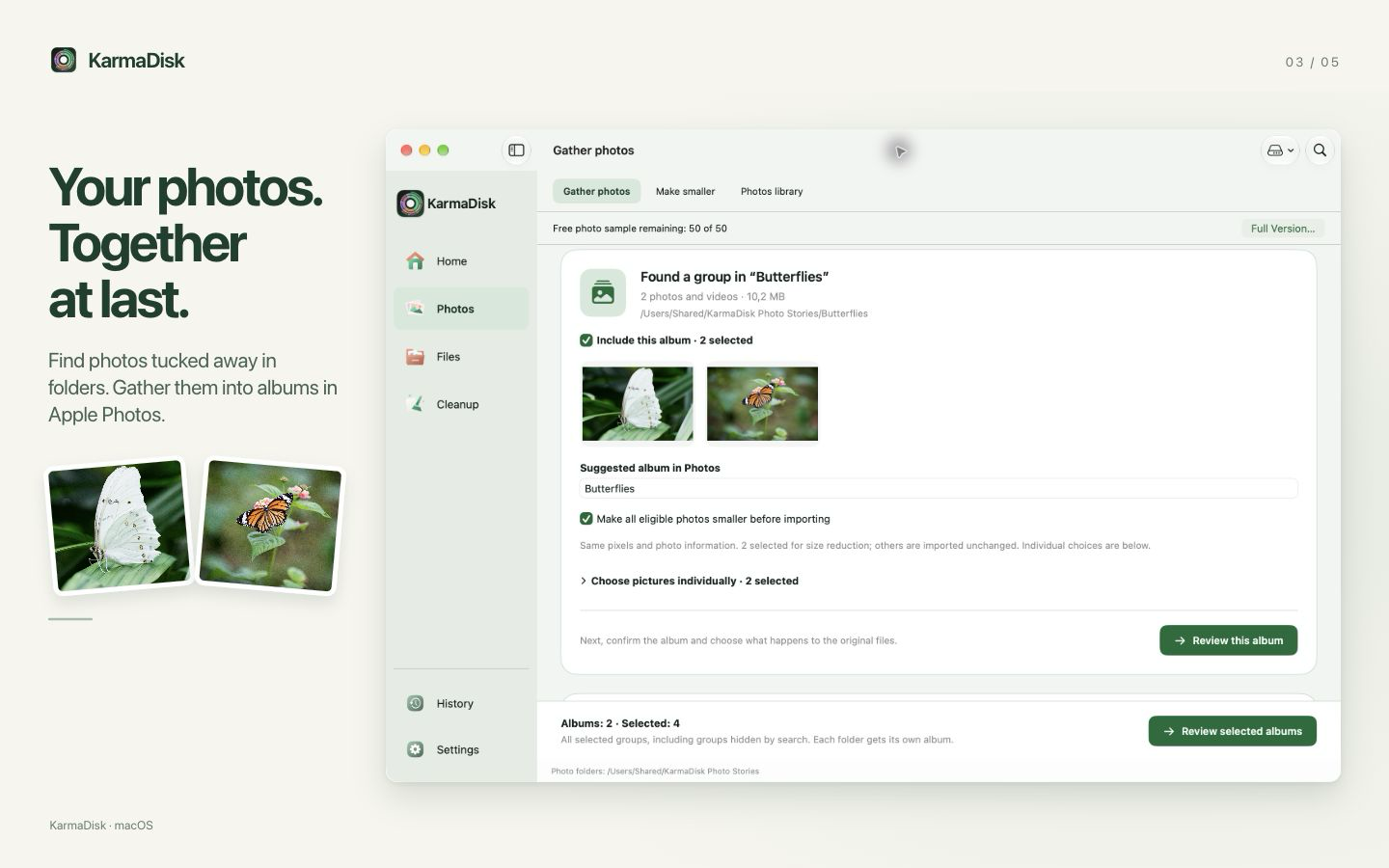
What it does not do: KarmaDisk creates a flat list of albums, one per folder. It does not recreate your folder hierarchy as Photos folders, so if that structure matters, Photos' own Keep Folder Organization option is the better fit. Imports go into your System Photo Library, and KarmaDisk does not merge Photos libraries.
5. After the import
An import makes copies, so your Mac now holds each picture twice: once in the folder and once in the library. Deciding which originals can go is a separate question, covered in Is it safe to delete the original photo files after importing into Photos? If you are not sure whether some of the pictures are already in Photos, read Will Apple Photos import duplicates? first.