
GUIDE
How to find what is taking up space on your Mac
"Your disk is almost full" rarely says why. Start with the tools that come with macOS, then use a storage map when you need to see inside your own folders. This guide covers both, and what each one can and cannot free.
Download KarmaDisk free for Mac
Storage maps, large-file lists, duplicate review and cleanup are free. macOS 15 or later.
1. Start with Apple's built-in tools
Open System Settings, General, Storage. macOS groups your space by category (Applications, Documents, Photos, iCloud Drive, System Data and others) and offers recommendations such as storing files in iCloud or emptying the Trash automatically. The information button next to a category shows its largest items.
In Finder you can also search your Mac, add a "File Size is greater than" criterion and sort by size. Both are free and need no extra app. Their limit is that categories don't show where inside your own folder tree the space has gone.
2. See inside your own folders
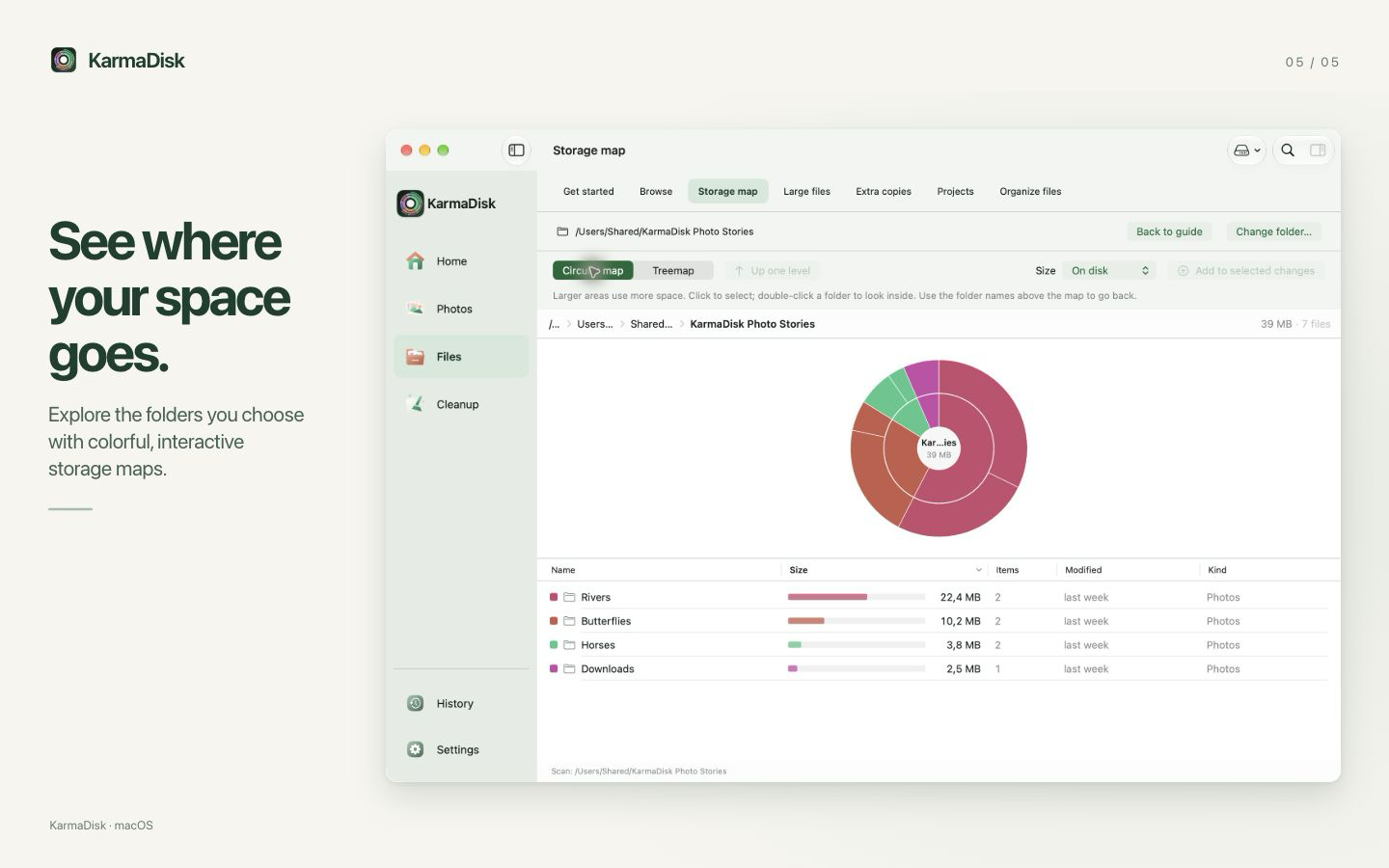
A storage map shows every folder as an area proportional to its size, so a forgotten 40 GB folder stands out immediately. In KarmaDisk:
- Choose the folder to scan, for example your home folder or an external drive. KarmaDisk works in the macOS App Sandbox and only sees folders you choose; it does not ask for Full Disk Access.
- Open Files, Storage map and switch between the circular map and the treemap. Double-click a folder to look inside it.
- Use Large files, search and filters to list the biggest items. Quick Look previews a file; Show in Finder reveals where it is.
- Open Files, Extra copies to group identical files and choose which copies to keep.
Nothing is selected or removed automatically. Items you remove go to the Trash, and every file is checked again just before it is moved.
3. The usual suspects
- Downloads. Old installers and disk images pile up. KarmaDisk's Cleanup view lists old downloads and installers for review.
- Copies of the same folder. Photo exports, project folders and old backups copied "just in case".
- Photo folders outside the Photos library. Imports from cameras and old computers. Gathering them into Apple Photos lets you remove the loose originals once each import is verified.
- Video projects and screen recordings, which are often the largest single files on a Mac.
4. Why the number doesn't drop
A file's listed size is not always the space you get back. Files in the Trash still use space until the Trash is emptied. Moving a file to another folder on the same disk frees nothing. Some copies share storage with each other, so removing one frees little. Time Machine local snapshots and space macOS manages itself can hold on to space for a while; macOS releases it as needed.
"System Data" includes caches, logs, snapshots and other items macOS and apps manage. KarmaDisk does not clean system folders or other apps' private data, and doesn't uninstall apps. For System Data, Apple's own Storage settings and support articles are the right place to start.
5. Other tools
If you only want a map, DaisyDisk, GrandPerspective and OmniDiskSweeper are long-standing options, and the last two are free. KarmaDisk adds duplicate review, guided cleanup of old downloads, and photo workflows that gather scattered folders into Apple Photos and make supported JPEG, PNG and TIFF images smaller without changing a pixel. It runs locally, with no account, ads or tracking.
Download KarmaDisk free for Mac
Compared side by side: Finder, Storage settings, Terminal and storage-map apps.