
GUIDE
Find large files on a Mac: Finder, Storage settings, Terminal and storage-map apps compared
macOS already has three ways to find big files, and several apps add a visual map. They answer slightly different questions. This page compares them on what they cost, whether they draw a map, whether they find duplicates and whether they can show System Data, including where KarmaDisk falls short.
Download KarmaDisk free for Mac
Storage maps, large-file lists, duplicate review and cleanup are free. macOS 15 or later.
At a glance
| Tool | Free? | Map? | Duplicates? | System Data? |
|---|---|---|---|---|
| Finder search | Yes, built in | No, a sortable list | No | No; system files are left out unless you add that criterion |
| System Settings, Storage | Yes, built in | No; File Browser lists folders by size | No | Shows the total; Apple says you can't manage its contents there |
| Terminal (du, find) | Yes, built in | No, text output | No | Can measure system folders with administrator rights; removes nothing |
| DaisyDisk | No, paid with a free trial | Yes, circular | Not listed on its site | Yes, its site describes a System Data breakdown and an administrator scan |
| GrandPerspective | Yes from SourceForge; a paid App Store edition also exists | Yes, treemap | Not listed on its site | Scans what it can access and asks for Full Disk Access |
| OmniDiskSweeper | Yes | No, a size-sorted list | No | No separate System Data view |
| KarmaDisk | Maps, large files and duplicate review are free | Yes, circular and treemap | Yes, Files, Extra copies | No; only folders you choose, no Full Disk Access |
The third-party entries are based on each developer's own site as of November 2026. Check them again before you rely on a detail.
Finder search
Open a Finder window, press Command-F and set the search location to This Mac or a folder. Click the Add button below the search field, open the far-left pop-up menu, choose Other and select File Size; then set "is greater than" and a value such as 1 GB. Sort the results by Size. It is quick and needs nothing extra. It shows single files, not which folder has grown, and it does not tell you which files are copies of each other.
System Settings, Storage
Choose Apple menu, System Settings, General, Storage. macOS groups used space by category and offers recommendations. Click the information button next to Documents to view large files or downloads, sort them by Name, Kind, Last Accessed or Size, and click File Browser to see how much space folders use. Apple describes this in Change Storage settings on Mac and Free up storage space on Mac.
System Data appears here as one total. Apple calls it a general category for storage used by Apple and third-party files, and says you can't manage its contents from Storage settings. See Change Storage settings on Mac.
Terminal
Terminal reads sizes without changing anything. To list the folders in your home folder sorted by size, with big folders at the bottom:
du -hd 1 ~ | sort -hTo list files over 1 GB anywhere in your home folder:
find ~ -type f -size +1GSome folders report "Operation not permitted" unless Terminal has Full Disk Access, and measuring system folders needs administrator rights. du adds up the space files take on disk; it can't show that two copies share storage, so its totals can be higher than what removing them would free.
Storage-map apps
A map draws every folder as an area in proportion to its size, which makes a forgotten folder stand out in a way a list does not. DaisyDisk, GrandPerspective and OmniDiskSweeper are long-standing options, and the table above shows how they differ.
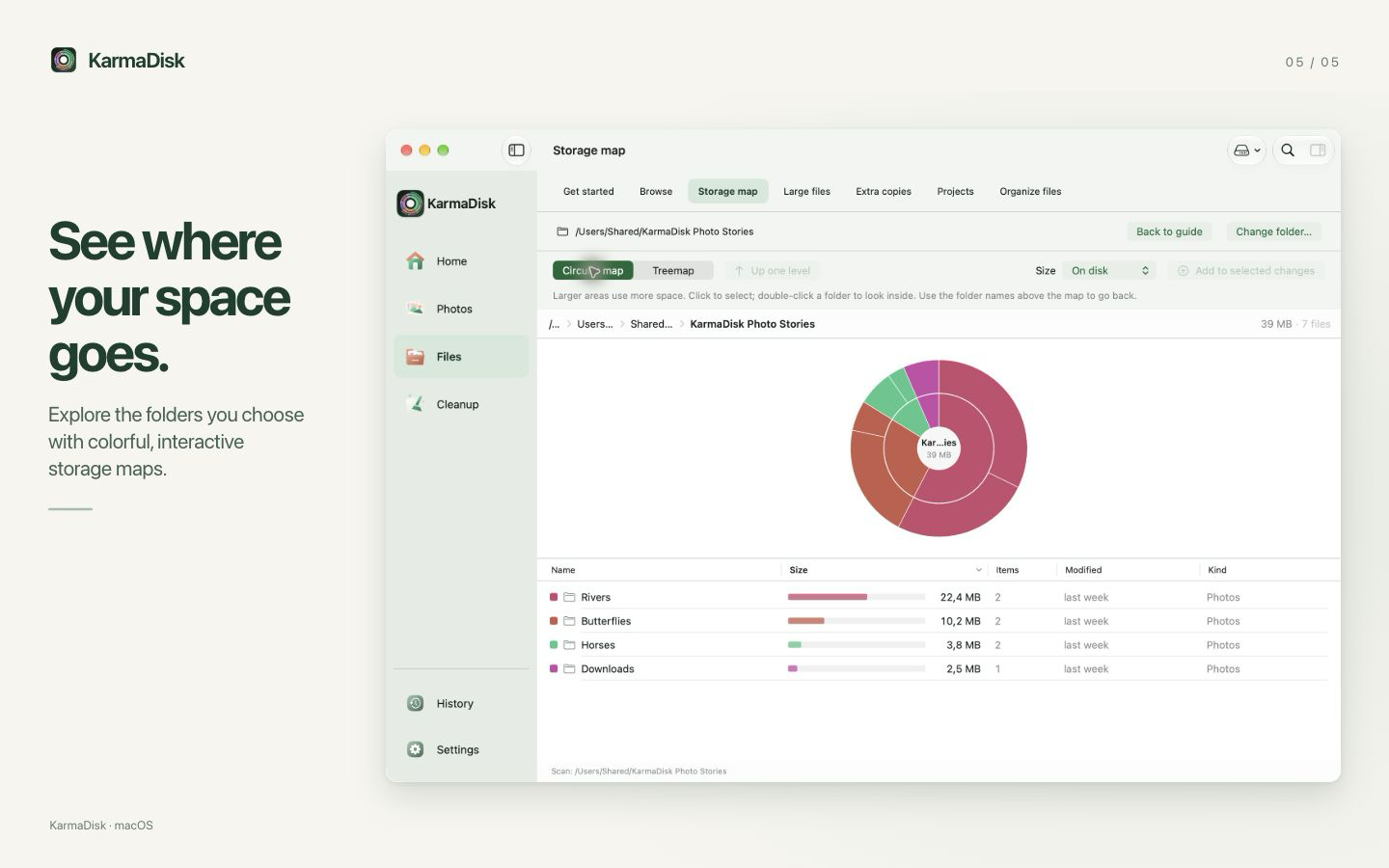
KarmaDisk draws the same kind of map for the folders you choose. In Files, Storage map you switch between the circular map and the treemap and double-click a folder to look inside. Large files, search and filters list the big items, with Quick Look and Show in Finder. Files, Extra copies groups identical files so you can mark which copies to keep; at least one copy always remains, and a filter shows copies that already share storage.
What KarmaDisk does not do: it works in the macOS App Sandbox, does not ask for Full Disk Access and only sees folders you pick. It skips macOS system folders, other apps' private data, apps and Photos libraries. It does not clean System Data and does not uninstall apps. If System Data is the problem, start with Apple's Storage settings.
What none of them change
A file's listed size is not always the space you get back. Items in the Trash use space until the Trash is emptied. Moving a file to another folder on the same disk frees nothing. Time Machine local snapshots can hold on to space for a while. Every tool on this page helps you find files; deciding what to remove, and keeping a backup, stays with you.
Download KarmaDisk free for Mac
How to find what is taking up space on your Mac · A one-hour cleanup plan · Full user guide