
GUIDE
Digital Cleanup Day on a Mac: a one-hour plan for your photos and files
Digital Cleanup Day is an international campaign, run each March by the Estonian non-profit Let's Do It World, that asks people to delete digital clutter they no longer need. On most Macs, the biggest clutter is photos: copies of the same folders, old drives, downloads nobody opened again. This plan helps you clear that in about an hour without losing a picture you meant to keep.
Download KarmaDisk free for Mac
macOS 15 or later. Storage maps, large-file lists and duplicate review are free. Photo workflows include a lifetime sample of 50 photos; an optional one-time Full Version removes that limit.
Before you start: a backup
Cleaning up means deleting, so make sure you have a recent backup first, for example with Time Machine. Deleted files go to the Trash and stay there until you empty it, so you can still change your mind until then.
The campaign's site, digitalcleanupday.org, gives the date for this year and lets you record what you cleaned up.
1. Look before you delete (10 minutes)
Open System Settings, General, Storage to see the broad categories. To see which folders are actually large, use a storage map. KarmaDisk draws your disk as a circular map that you can explore folder by folder, so the old camera import or the forgotten video project stands out.
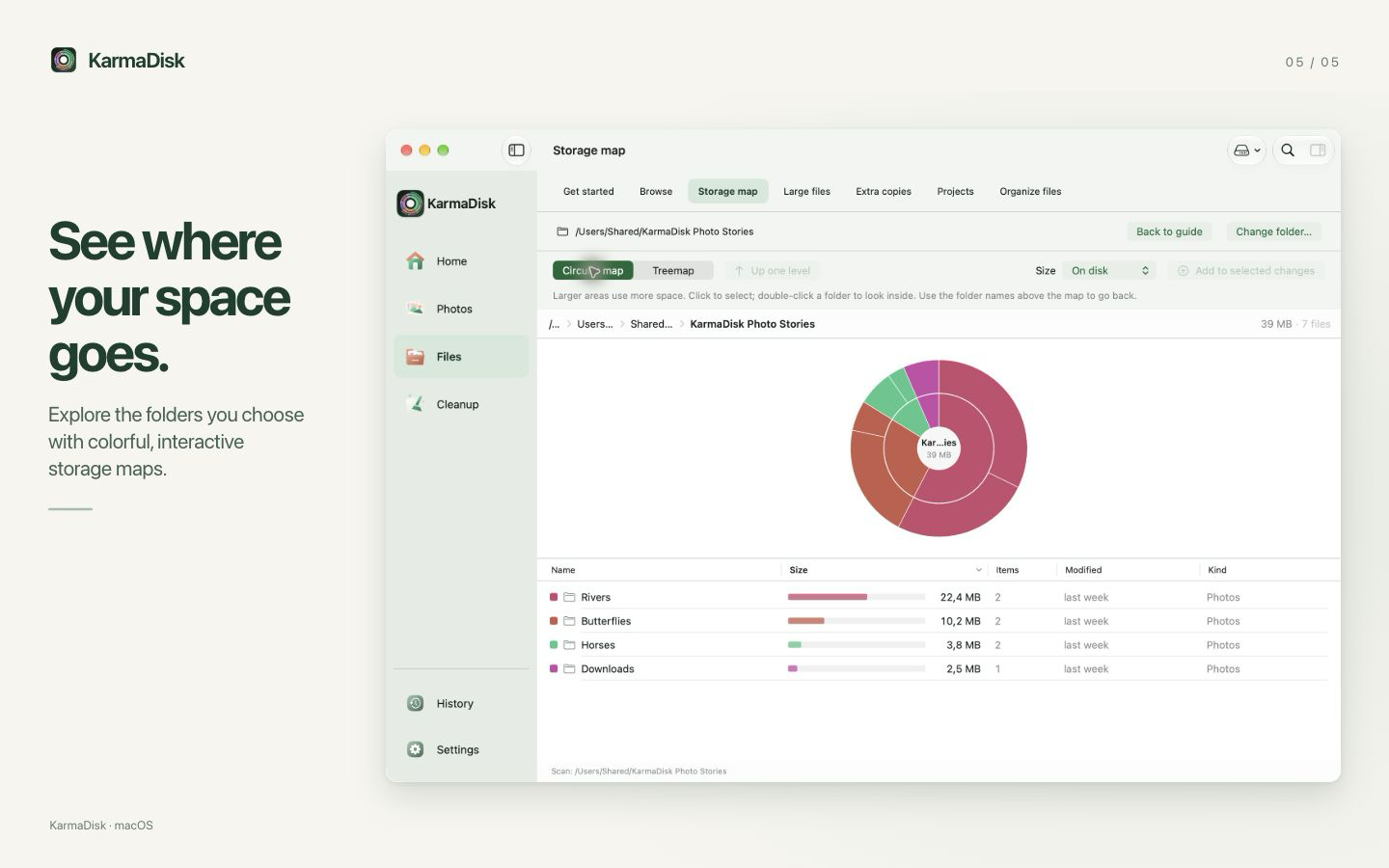
Write down the two or three places that use the most space. You will come back to them.
2. Remove identical copies (15 minutes)
Folders copied "just in case" are the easiest win, because an identical copy holds nothing you would lose. In KarmaDisk, Extra copies finds files that are byte-for-byte identical, groups them and lets you decide which copy to keep. Nothing is removed until you confirm, and removed files go to the Trash.
Photos that only look similar are not identical. Review those by eye rather than deleting them automatically. For duplicates inside Apple Photos itself, use Photos' own Duplicates album: how Photos handles duplicates.
3. Put loose photos in one place (20 minutes)
After the copies are gone, pictures still scattered across folders and drives are the next problem. Bring them into Apple Photos so there is one library to back up. You can do this with File, Import in Photos, folder by folder, or with KarmaDisk's Gather photos, which finds the pictures in the folders and drives you choose, imports them into albums and checks each import.
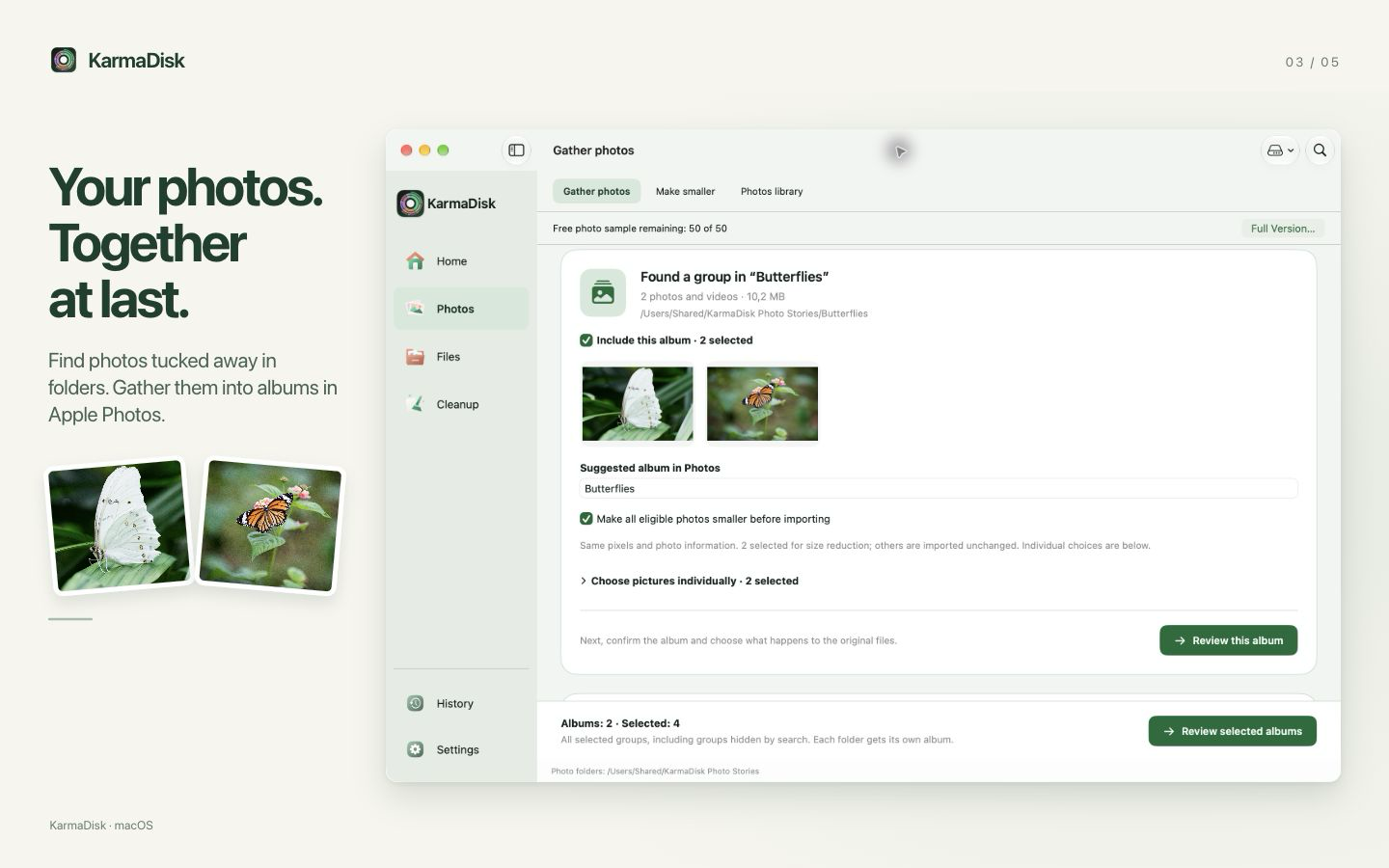
Only delete an original once you know Photos holds a complete copy of it: is it safe to delete originals after import?
4. Large files you no longer need (10 minutes)
Sort what is left by size: old installers, disk images, exported videos, archives in Downloads. A large-file list makes this quick. For the different ways to find them, see Finder, Storage settings, Terminal and storage-map apps compared.
5. Finish (5 minutes)
- Look through the Trash once more, then empty it. Until then, the space is not freed.
- If you use iCloud Photos, remember that deleting a photo deletes it on every device.
- Note what you removed, and record it on the campaign site if you want to take part.
Freed space does not always show up straight away, because macOS can keep some space for snapshots and caches for a while.
Download KarmaDisk free for Mac
Photos from an old external drive · Got a new Mac? · How photo cleanup works · Full user guide