
GUIDE
Got a new Mac? How to bring your photos over without duplicates
A new Mac is the moment old photo habits catch up with you: a library in iCloud, an old drive in a drawer, folders copied "just in case". The way to avoid duplicates is to bring each source over once, by one route, and check before you add the next. This guide covers Apple's two routes, then the loose folders and drives that neither one reaches.
Download KarmaDisk free for Mac
macOS 15 or later. Storage maps and duplicate review are free. Photo workflows include a lifetime sample of 50 photos; an optional one-time Full Version removes that limit.
Route 1: Migration Assistant
According to Apple's guide to transferring to a new Mac with Migration Assistant, it transfers documents, apps, user accounts and settings from another Mac, from a Time Machine backup of your old Mac, or from a Windows PC. You choose which categories of information to move. The page says the process does not delete information from your old Mac, so the old Mac stays as one more copy until you erase it yourself. Apple does not mention Photos on that page, so after the transfer, open Photos and check that your pictures are there before you do anything else.
If you also import pictures from other places later, you may be adding pictures that already arrived through Migration Assistant. That is where duplicates come from.
Route 2: iCloud Photos
If your pictures are already in iCloud Photos, you do not need to copy them at all. Apple's guide says to sign in with the same Apple Account on all your devices, then turn on Sync this Mac under Photos in the iCloud settings (Set up and use iCloud Photos). Under Optimize Storage, your Mac keeps space-saving versions and iCloud keeps the full-resolution originals; choose Download Originals to this Mac to keep full-size files here. Apple also notes that when you delete photos on one device, they are deleted everywhere you use iCloud Photos, and that photos are not duplicated in your iCloud backup, so keep a separate backup of your library.
The practical rule: use either Migration Assistant or iCloud Photos for the library, not both at once for the same pictures, and check the result before adding more.
What neither route brings: old drives and loose folders
Camera imports on an external drive, a "Pictures" folder from an earlier Mac and copied backup folders are ordinary files. Migration Assistant may move some of them with your documents, and iCloud Photos never sees them. Photos can import them with File, Import: select a folder, click Review for Import, choose where the items go, and click Import All New Photos (Import from storage devices and DVDs in Photos on Mac). That works for a few folders. With dozens of folders and several drives, it is slow, and Photos does not tell you which original files now have a complete copy in the library.
With KarmaDisk
Photos, Gather photos is built for the loose-folder case.
- Choose the folders and drives to search. KarmaDisk finds the pictures and videos inside them, including deep subfolders, and only sees folders you choose.
- Recognise your pictures from large thumbnails, and select what you want. Excluding a folder only changes the selection; it never changes or deletes files.
- Choose the albums to import into. KarmaDisk imports the pictures and then checks each one: that Photos holds a complete copy and that it is in every album you chose.
- KarmaDisk keeps a record of each import. Files it has imported before, or identical copies of them, are not imported again unless you choose Import another copy, and an interrupted run can continue without importing the same pictures twice.
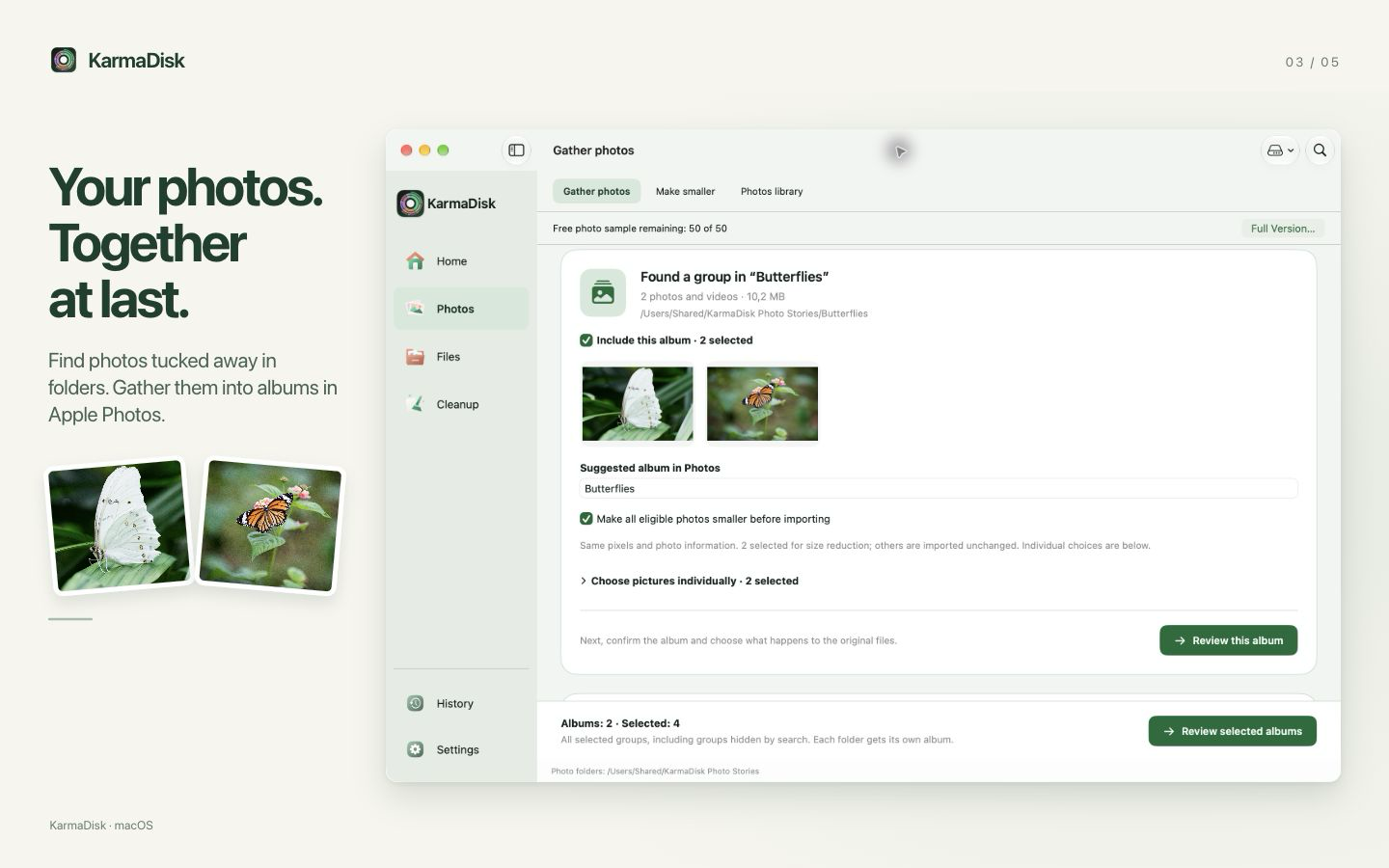
The option Move verified originals to Trash after import is on by default; clear it to keep every original where it is. When it is on, an original is moved to the Trash only after its checks pass, and anything that cannot be confirmed stays in its folder. KarmaDisk never empties the Trash for you.
What it does not do: its import record covers only pictures imported with KarmaDisk, so it does not know about pictures that arrived through Migration Assistant or iCloud Photos. It does not look inside Photos or iPhoto library packages and does not merge Photos libraries. For duplicates already inside Photos, use the Duplicates collection under Utilities in the sidebar (Find and merge duplicate photos and videos). Before importing from several folders, the free Files, Extra copies view groups identical files, so a folder copied twice is imported once.
A safe order
- Back up the old Mac or drives first, for example with Time Machine.
- Bring the library over with one route, Migration Assistant or iCloud Photos, and check it in Photos.
- Run Extra copies on old drives and folders to remove identical files.
- Gather what is left into albums, one source at a time, and keep the originals until you are satisfied.
Download KarmaDisk free for Mac
Gathering photos from many folders · Photos from an old external drive · Will Photos import duplicates? · Full user guide